Showing posts with label how. Show all posts
Showing posts with label how. Show all posts
How to Disable Ads in uTorrent
 |
| Learn How to Diable Ads in uTorrent in Urdu Tutorial By XPCMasti.blogspot.com |


7 GoogleAdsenseGuide How to apply for Google Adsense

| To get an adsense account it is very easy and you can apply for this service without any hesitation. The instructions are very simple. Just follow the following instructions that you can easily create an adsense account. | |
| 1. | First of all open your Internet Browser (IE or Firefox. etc) and type the following URL in |
Address bar | |
http://www.google.com/adsense | |
| 2. | Now you can see a website will open that is necessary to create your account on right side you will see a BLUE button which display a message on it called "Signup Now" Just click on it. |
| 3. | An application form will open that is requiring your full information to create adsense add count you should put the right information about you in this form. At last you see an agreement please also read it. |
| 4. | After writing full information click on the "Submit Info" then your form will submit. |
| 5. | At last Google shall verify your website if your website meet the requirements of Google then it will be very grateful for you. Then Google send you an E-mail regarding Adsense Account information and you will be able to handle your account. |
iPhone SMS Recovery How to Recover deleted SMS from iPhone

My God! I don’t know what happen!!! I was told that I have lost my text message forever when I synced my iPhone. Is there any way or anything that can retrieve deleted text messages iPhone 4S? What if I did not sync the damn iPhone, nothing was wrong. Please help as soon as possible!
Question 2: I deleted my iPhone sms and how to retrieve iPhone SMS if possible?
I received a sms this morning from an important client. However, I deleted it accidently before I could read it. Im wondering if there is any way I can restore iPhone sms messages. PLEASEE HELPPP!
I read such questions about iPhone sms recovery every day. It is not strange that iPhone users deleted their sms by mistake. Today, in this article I’d like to share some valid and simple methods to retrieve iPhone sms. These methods could be used for all iPhone versions as iPhone 5, iPhone 4S, iPhone 4, iPhone 3GS etc.)
Safe and efficient ways to recover text messages iPhone
SMS recovery software is the most efficient way for iPhone text message recovery. There are so many sms recovery software nowadays, for most people, what we need to do is choose a valid but inexpensive one. Tenorshare iPhone Data Recovery is the one as more people have had success with it. Not only is this program able to recover text message but also other files like photos, contacts, videos, audio, calendar, call history, bookmarks, etc. You can get it from http://www.any-data-recovery.com/product/iphone-data-recovery.html
Follow the below ways, you will be guaranteed to get back all the deleted sms without any loss!
Method 1: Recover iPhone SMS without Backup
Never backup iPhone sms with iTunes or iCloud before? It doesn’t matter, deleted sms can be quickly and easily recovered by iPhone Data Recovery program. Below are the simple steps:
1. Download Tenorshare iPhone Data Recovery and install it on your PC. Launch it and you will get the interface below:
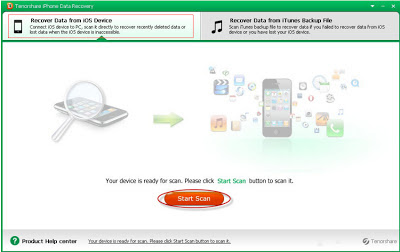
Note: Except iPhone 5 and iPhone 4S, other iPhone versions need to enter DFU mode to scan lost files. Click How to enter iPhone DFU mode to learn details.
2. Choose “Recover Data from iOS Device” option, and click “Star Scan” to scan for lost data. After the scanning is completed, you can preview the deleted sms before recovery.
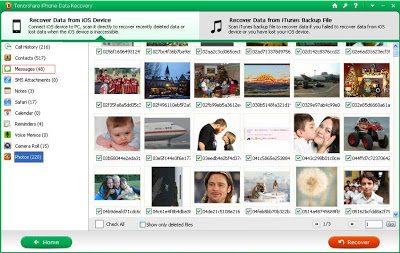
3. Choose “Messages” category, select the messages you need to recover, and click “Recover” to save the text message on your computer.
Method 2: Recover deleted text messages iPhone from Backup
However, you may ask: “What if I have a backup before?” Well, take it easy, you can resort to other ways. Here is a note: sync iPhone with iTunes will covered the old backup files, so please don’t do that before retrieve the lost data.
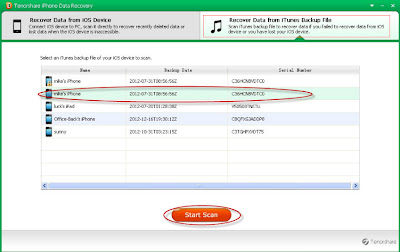
Select “Recover Data from iTunes Backup Files” option. iPhone Data Recovery program will identify all the backup files in this computer automatically. Then choose the backup file which needs to recover sms, click “Start Scan”. The last steps are preview and recovery.
Source: http://www.any-data-recovery.com/topics/mobile-devices/recover-deleted-text-messages-iphone.html
Update (September 27, 2013)
The methods above also help to recover text messages on iPhone 5S/5C. Besides, I have got several responses that this article have been helped people restore lost text messages after iOS 7 update successfully.
How Was the Computer Invented and When
Imagine the world without computers. You’d have no internet to help you with your homework, and just think of all that post, photocopying and filing.
The first computer was invented in 1834, long before TV, telephones and even electricity. The inventor, Charles Babbage, called his computer the Difference Engine. It was essentially a calculator and since there was no electricity, it was mechanical. And very complicated.
In fact he never quite managed to finish it. Babbage spent a further 37 years designing the Analytical Engine, a pre-cursor to the first working general-purpose computers.
Computers really got going in the 20th century: Konrad Zuse’s Z3 was the first programmable computer, invented in 1941.
The Colossus computer was the first completely electronic computer. It was used to crack German codes during the Second World War.
By the end of the 1950s computers had become smaller and cheaper. (They were still about the size of a double-decker bus, though.)
Microprocessors, programmable components measuring just a few millimetres, were invented by Intel employee Ted Hoff in 1971. Just one of them was as powerful as the huge 30-tonne computers of the 1940s.
By the 1980s computers were small and cheap enough for individuals to buy and use at home. And today, computers are everywhere and most modern electronic devices, from washing machines to cars, contain one.
Finished Engine: Although Charles Babbage never completed the Difference Engine himself, the Science Museum in London did manage to build one in 1991, to mark the 200th anniversary of Babbage’s birth. And it worked!
Computers have taken over almost all aspects of our lives, from schoolwork and homework to keeping in touch with your friends. But not so long ago computers didn’t even exist.
Can you live without using one for at least a week? Sign the declaration and see if you have the will power to give it up.
I DECLARE: BY SIGNING THIS FORM I AGREE TO LIVE ONE WHOLE WEEK WITHOUT USING A COMPUTER AT ALL. HOWEVER TEMPTED I MAY BE, I VOW NOT TO TOUCH ONE.
How to Set a Custom Message On Windows 7 Startup In Urdu Tutorial
 |
| Learn How we Can Set a Sutom Message On Windows7 Startup In Urdu Tutorila By XPCMasti.blogspot.com |
How to Increase p2p Download Speed Tcpip Patch
In Windows it allows maximum of 10 half open connections at one time.Its limited by windows for a security reason.Suddenly if your Computer get infected with Virus ,worm or any kind of malware,if half open connections are limited, it slow down spreading them to another computer through the internet.and also reduce the impact of infected systems participating in DOS (Denial of Service) attacks.


Tcpip Patch For Windows XP SP3
Read more »
And the bad thing is this limit can also slow down P2P applications like "uTorrent, BitTorrent, Vuzu, BitComet, eMule". Because they need to connect to several peers for better Download Speed.When the half open connections limited by windows it can connect to few peers.Thats why we need patch "tcpip.sys" file to expand the limitation and get better Torrent download speed.OK friends lets remove the limitation for forever!!!!
For:
Windows XP Sp2/Vista/Windows 7, 32bit(x86)/64bit
Universal Tcpip.sys Patch, V1.2
Meaning of the numbers
1 - Original file, without any modification.
3 - The file has been modified, but with a test certificate.
9 - The file has been modified, but not repair signing. (Windows XP does not compare the signing)
Read the Instructions before applying the patch
Important:
* In Vista / Windows 7, testsigning must set to on," Test mode " watermark may appear in Desktop.
* If " Test Mode " watermark exists on the desktop, apply the patch once again.
* If it still exists dont try to disable it. let it be there, it wont bite you... 
Create a System restore point before applying the patch
- Make sure that you have Administrator Rights modify system files
- Run "UniversalTcpipPatch.exe" as Administrator
- Change Value to "100" (Maximum "256", But "100" is more than enough)
- Click On "Apply"
- Restart the Computer !! And Your Are DoNE..........
Enjoy the new torrent Download speed
More Info....
Tcpip Patch For Windows XP SP3
How To Fix When Laptop Is Plugged In But Not Charging In Urdu Tutorial
 |
| Learn How To Fix When Laptop Is Plugged In But Not Charging Urdu Tutorial BY XPCMasti.blogspot.com |
How to Solve All Windows Errors In Urdu Tutorial
 |
| How to Solve All Window Errors In Urdu Tutorial By XPCMasti.blogspot.com |
How to Download Torrent Files Via Internet Download Manager In Video Tutorial
 |
| Learn How to Download Torrent Files Directly From Internet Download Manager (IDM) In Urdu Tutorial By XPCMasti |
How to Connect Android to Multiple WiFi Hotspots
Using Android, it’s easy to connect to multiple Wi-Fi networks, so you’ll never have to connect to the web when you arrive home as the device is already connected.

With Android, it’s incredibly easy to set up separate home and work Wi-Fi connections, so whenever you walk through the door your Android device will automatically connect without even asking. Explore the Market and you’ll find exciting third-party apps that add even more functionality to your smartphone. Follow us over the next two pages as we explore the various Wi-Fi options built in to the Android OS, and take a look at some free apps intended to make life even easier.

Discover some great apps that automate connecting to free Wi-Fi Networks.
You may also like this: Phone my PC Setup for Android
1 ? Turn On Wi-Fi
As you read this there’s a high chance that multiple Wi-Fi connections are available all around you. To find out if that’s the case, tap the Menu key on your Android device, choose ‘Settings’ and then ‘Wireless & networks’. If Wi-Fi isn’t already enabled, check the tick icon to begin.
2 ? Connecting Wi-Fi
Tap ‘Wi-Fi settings’ and you’ll see any available connections. Tap on one to connect. If it’s an open connection then a network signal will automatically begin. Otherwise, enter the password to connect.

Network Settings: This screen is where you can quickly toggle Wi-Fi On or Off
You may also like this: USB Sharp Pro for Android
3 ? Automatic ConnectingYou’re now connected to a Wi-Fi connection. Every time you enter its radius your device will automatically connect, so you’ll never have to enter the password again. To disconnect, tap and hold on the connection, and choose ‘Forget network.

Wi-Fi Settings: From here, you can choose which networks to connect to
You may also like this: WhatsApp Messenger for Android
4 ? Advance Setting
To rescan for available connections, tap the Menu button and choose ‘Scan’. By tapping ‘Advanced’ you can enable the Wi-Fi connection to stay permanently connected, never turn off when plugged in, or only turn off when the screen is turned off.
5 ? IP Setting
You’ll also find various IP settings, including the ability to use a static IP, enter a new IP address, DNS settings, and Gateway settings. These settings are only recommended for network professionals or people who really know what they’re doing.
6 ? Widgets
You can also connect and disconnect from Wi-Fi connections using the Power Control widget. To add it to your home screen, press the Menu key, choose ‘Add’, then ‘Widgets’, then tap on the Power Control widget.
7 ? Using WeFi
Within the Android Market you’ll find a number of Wi-Fi apps that make life easier for connecting to various networks. WeFi is a fantastic app for connecting to free Wi-Fi connections, the type you’ll find in coffee shops, other public businesses, or those who enjoy sharing their home connection.
8 ? WeFi Automatic Connection
WeFi automatically connects to the strongest free Wi-Fi hotspot, saving you having to manually connect. The app references a constantly updated database of free hotspots to determine which are the best available connections.

WeFi: This can identify the strongest network
You may also like this: Hotspot Pro for Android
Another great free app is Wifi Analyzer. It shows all available hotspots on a graph by signal strength and interference. If the graph is crowded with too many signals then it’s also possible to view the connections in list form.

WiFi Analyzer: There are plenty of Wi-Fi applications on the store, and this is a good one

Graphs: If it was not clear which network was the strongest, WiFi Analyzer can show you
10 ? Settings
Settings Wifi Analyzer is packed with clever touches. Via the Settings menu you can alter the graph colours, rescan for connections, keep the screen turned on, automatically connect to networks and also disable the banner ad at the bottom of the screen, if that bothers you.
Latest How To Get Whatsapp Free For 10 Years
![[Latest] How To Get Whatsapp Free For 10 Year By XPCMasti.blogspot.com](https://blogger.googleusercontent.com/img/b/R29vZ2xl/AVvXsEhqp_DrPnq3oJET6WOPhV5AkNeNPNzZoBM53qby6n5yevarTsV9qACxgsAhEQnTzRzWIU7tzwxBRtBOfMgbqQ0UAexbE3xdTWGJRbfVndESKGPlIh1feDrVIiA1BRgJOweGy1m4d-R52pM/s1600/%255BLatest%255D+How+To+Get+Whatsapp+Free+For+10+Year+By+XPCMasti.blogspot.com.png "[Latest] How To Get Whatsapp Free For 10 Year By XPCMasti.blogspot.com")
As We Know That 20 Million People Are Registered To Whats app And The Member Are Increasing Day By Day With The Passage OF Time. Whats App Is One Of Most Popular Messenger In Worldwide Because Of Its Key Features And Reliability. But You Will Know That It Is Not Premium. So Here Is A Trick To Use Whats App For 10 Year Free.
Learn How to Protect Your Facebook Account In Urdu Tutorial
 |
| Learn How to Protect Your Facebook Account In Urdu Tutorial By XPCMasti.blogspot.com |
How to Use WhatsApp Without Mobile Number Full Tutorial
 |
| Learn How to Use WhatsApp Without Sim Card Or Mobile Number BY XPCMasti |
Subscribe to:
Posts (Atom)
